Google VertexAI
Prerequisites
- Start your GCP
- Install the Google Cloud CLI
Setup
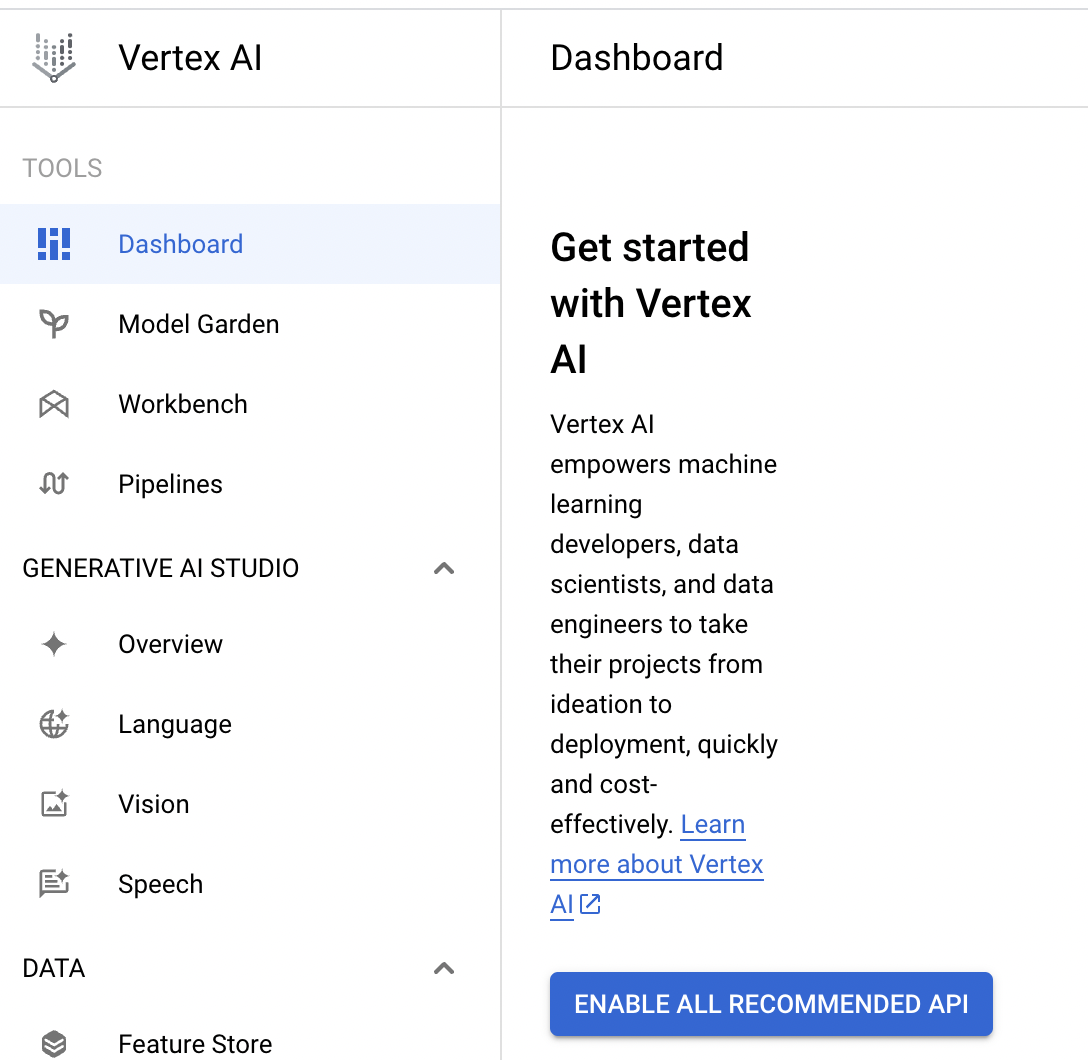
Enable vertex AI API
- Go to Vertex AI on GCP and click "ENABLE ALL RECOMMENDED API"
Create credential file (Optional)
There are 2 ways to create credential file
No. 1 : Use GCP CLI
- Open terminal and run the following command
gcloud auth application-default login
- Login to your GCP account
- Check your credential file. You can find your credential file in
~/.config/gcloud/application_default_credentials.json
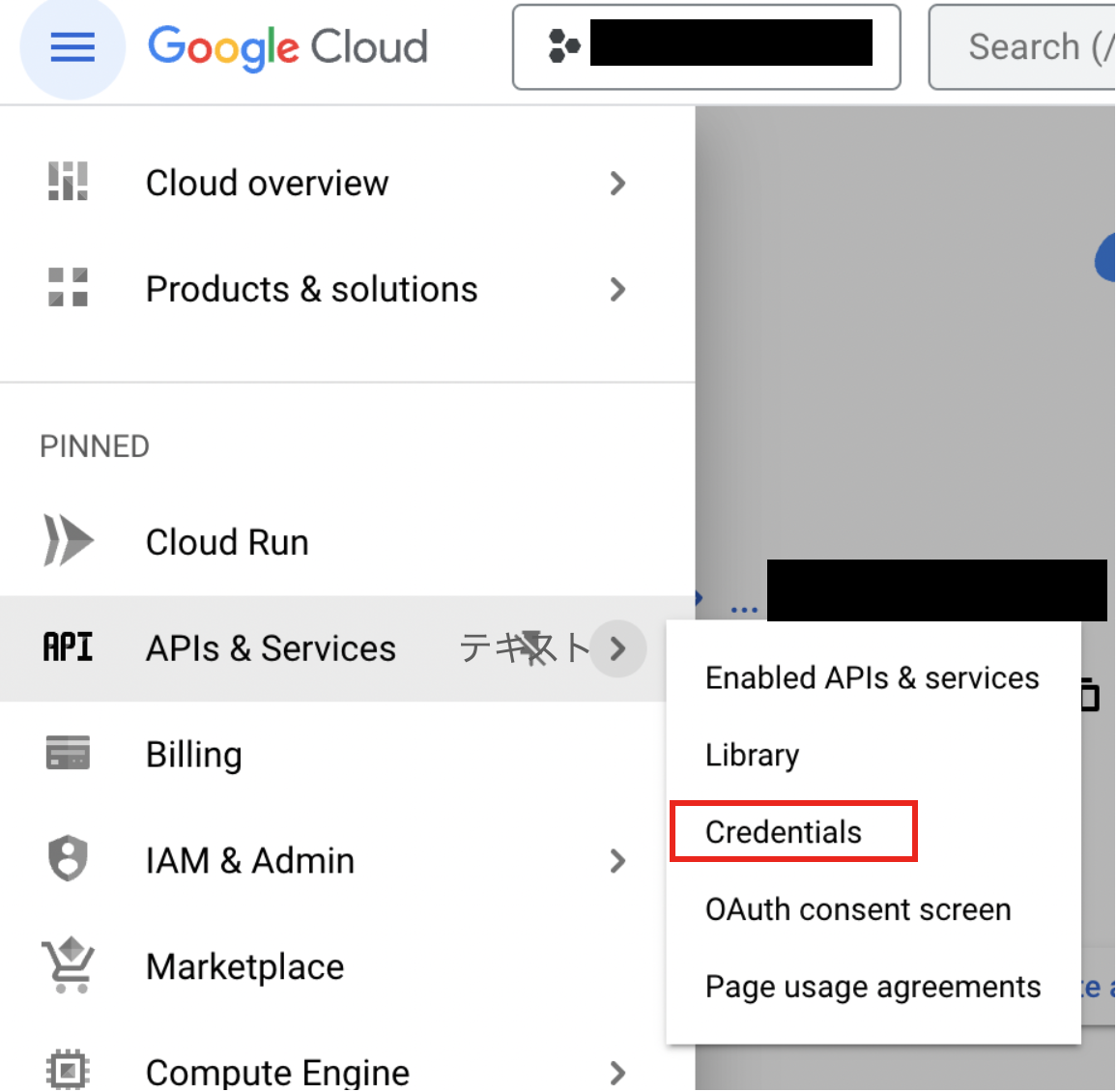
No. 2 : Use GCP console
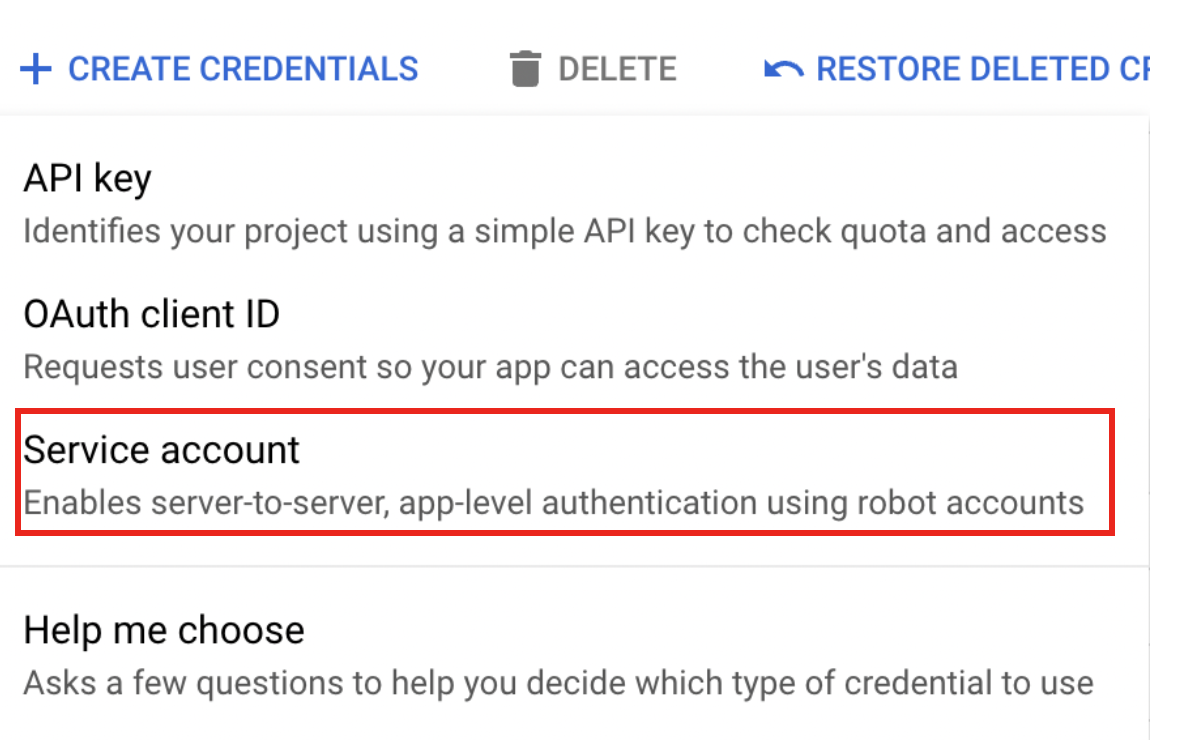
- Go to GCP console and click "CREATE CREDENTIALS"
- Create service account
- Fill in the form of Service account details and click "CREATE AND CONTINUE"
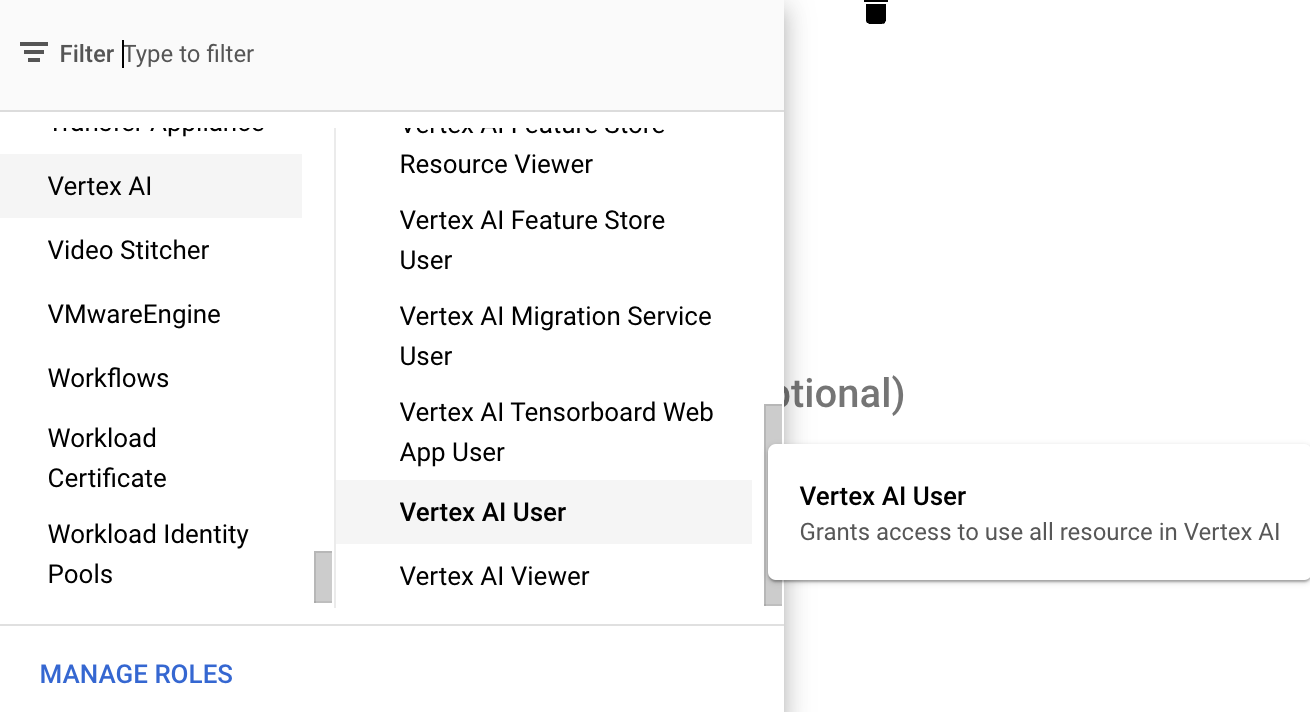
- Select proper role (for example Vertex AI User) and click "DONE"
- Click service account that you created and click "ADD KEY" -> "Create new key"
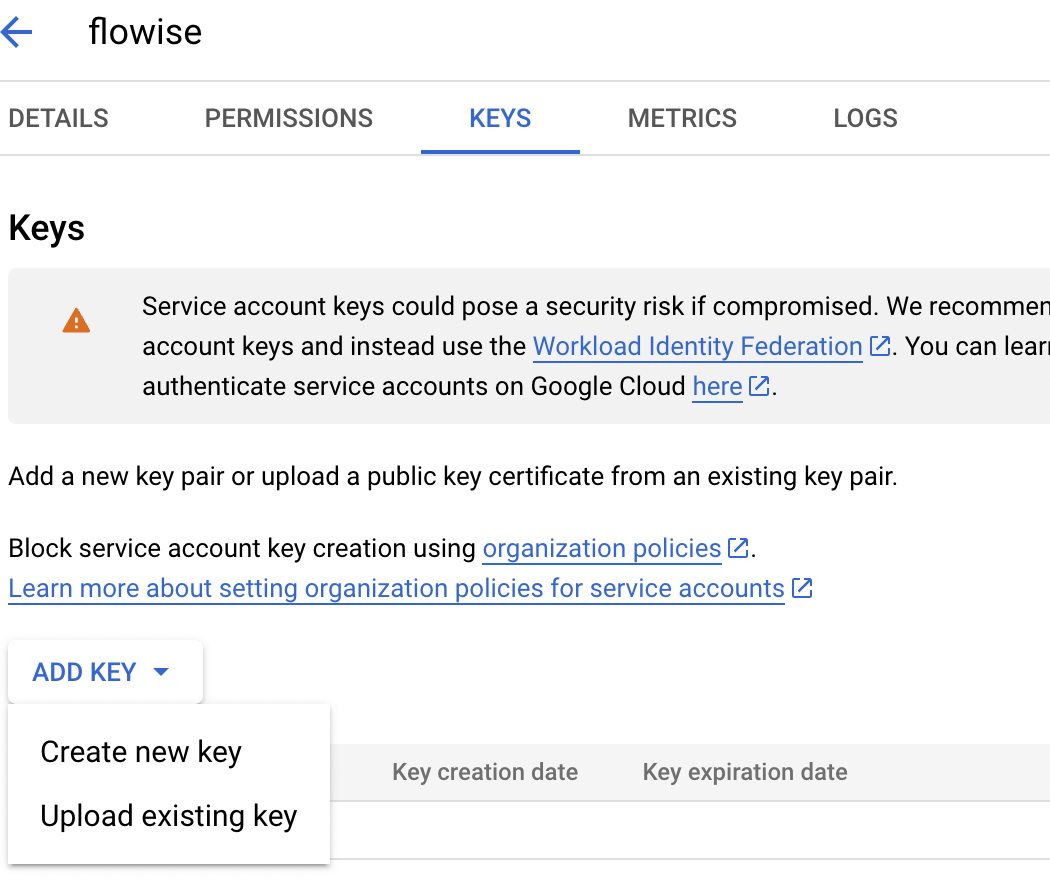
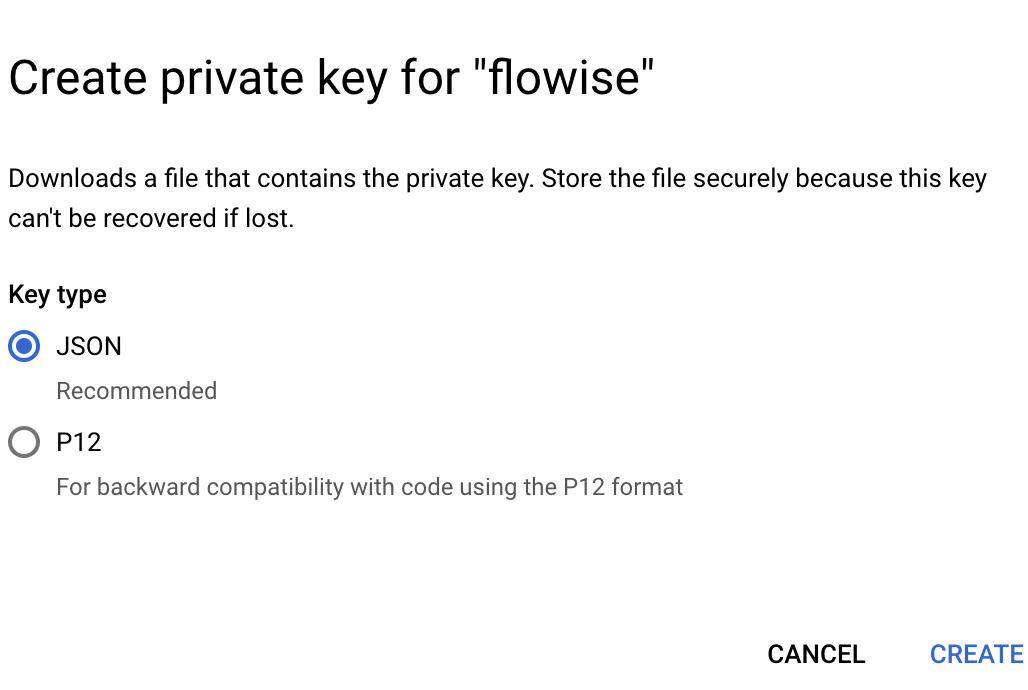
- Select JSON and click "CREATE" then you can download your credential file
CiniterFlow
 (1) (1) (1) (1) (1) (1) (1) (1) (1) (1) (1) (1) (1) (1)-3569c57cf722603617a65767a2f62894.png)
Without credential file
If you are using a GCP service like Cloud Run, or if you have installed default credentials on your local machine, you do not need to set this credential.
With credential file
- Go to Credential page on CiniterFlow and click "Add credential"
- Click Google Vertex Auth
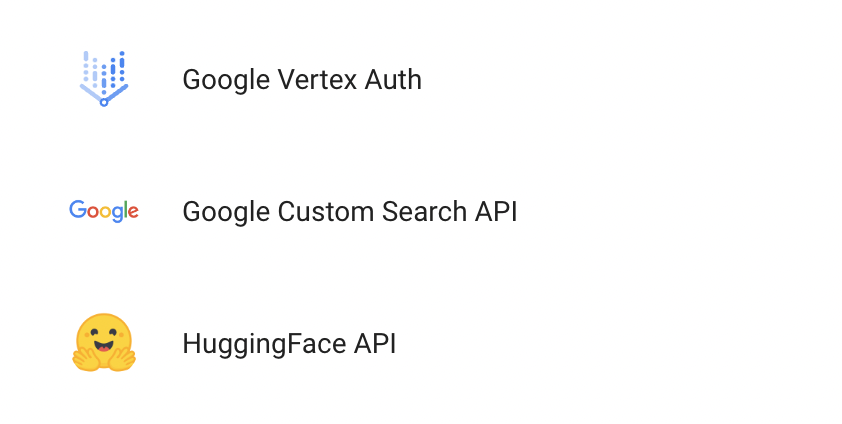
- Register your credential file. There are 2 ways to register your credential file.
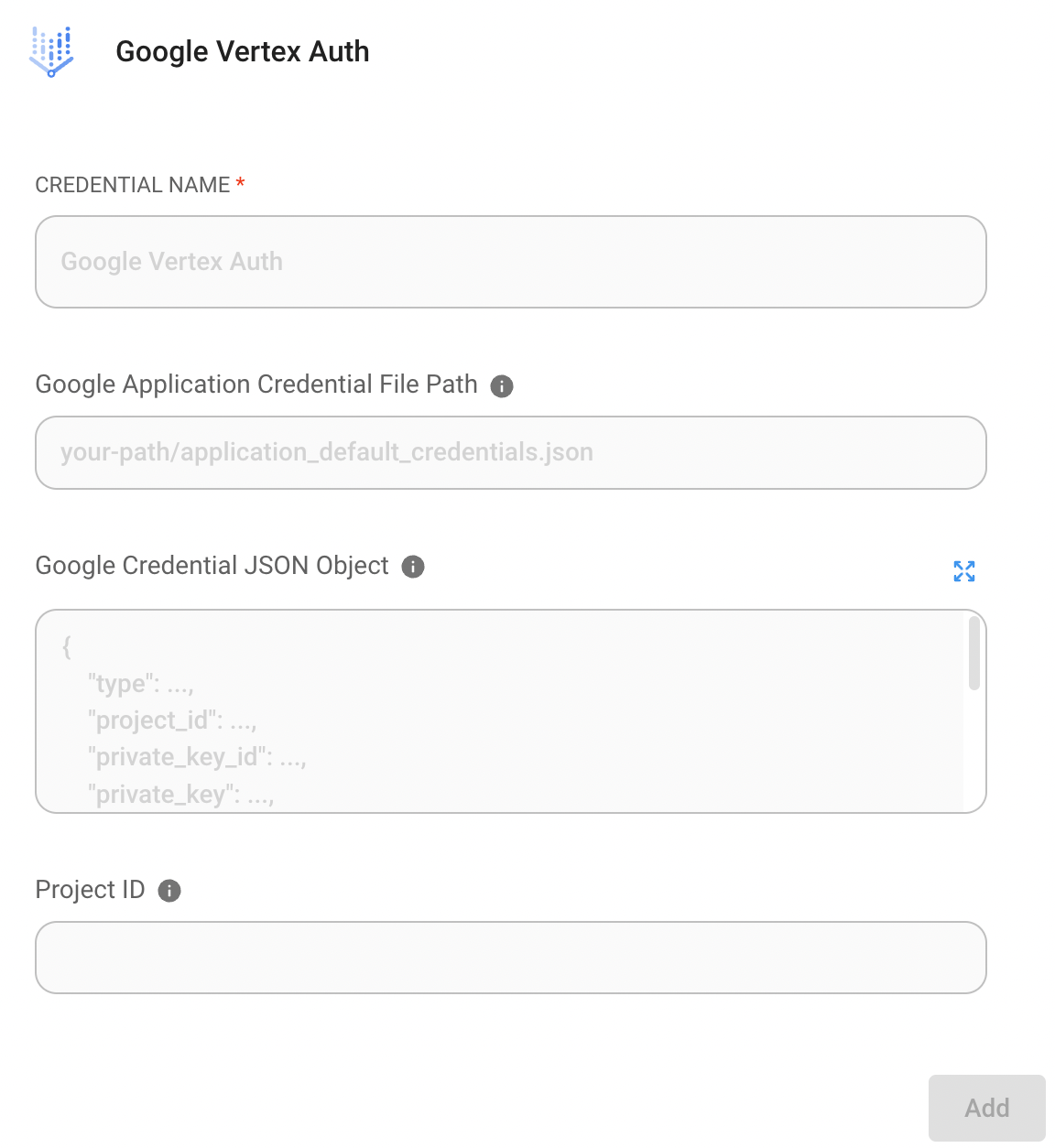
- Option 1 : Enter path of your credential file
- If you have credential file on your machine, you can enter the path of your credential file into
Google Application Credential File Path
- If you have credential file on your machine, you can enter the path of your credential file into
- Option 2 : Paste text of your credential file
- Or you can copy all text in the credential file and paste it into
Google Credential JSON Object
- Or you can copy all text in the credential file and paste it into
- Finally, click "Add" button.
- 🎉You can now use ChatGoogleVertexAI with the credential in CiniterFlow now!